Using the apps and maps
Your user account
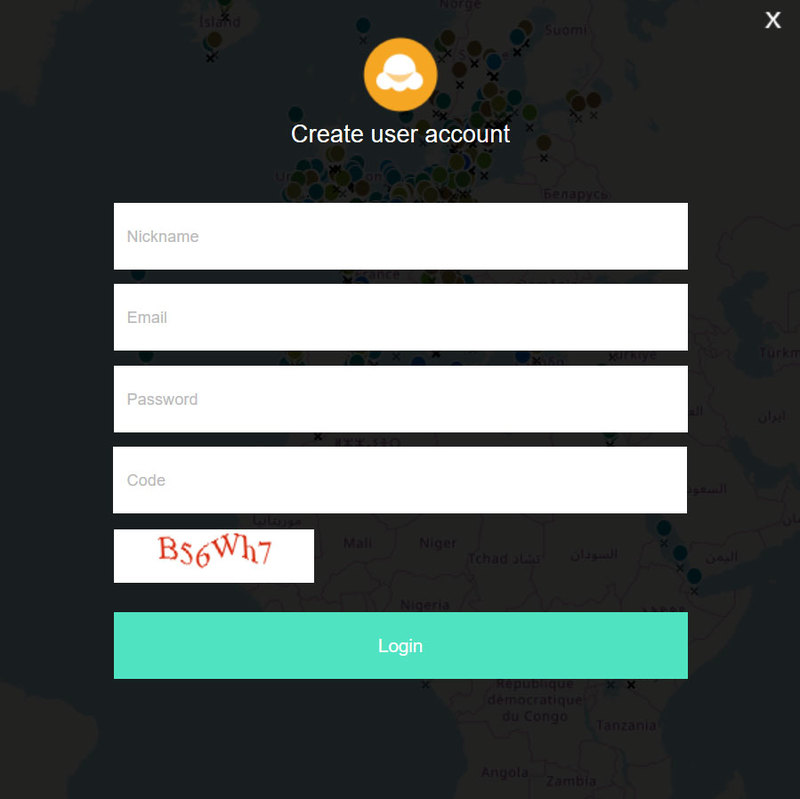 You can create a user account by clicking on “Create account” on the upper right corner of the
screen. After logging in you will see your nickname on the upper left of the screen. You can click
on “add device” to connect your mobile device to your account by scanning a QR-code.
You can create a user account by clicking on “Create account” on the upper right corner of the
screen. After logging in you will see your nickname on the upper left of the screen. You can click
on “add device” to connect your mobile device to your account by scanning a QR-code.
Most active data collectors can upgrade themselves from Jolly Jellyfish to Neptune. Every correct
photo you send will generate 10 points. You level up when reaching the following number of points:
- <100: Jolly Jellyfish
- 100+: Staggering Seahorse
- 250+: Tailspin Turtle
- 500+: Dorky Dolphin
- 1000+: Wandering Whale
- 2500+: Mesmerizing Mermaid
- 5000+: Neptune a.k.a. 'the King'
The map of colour observations
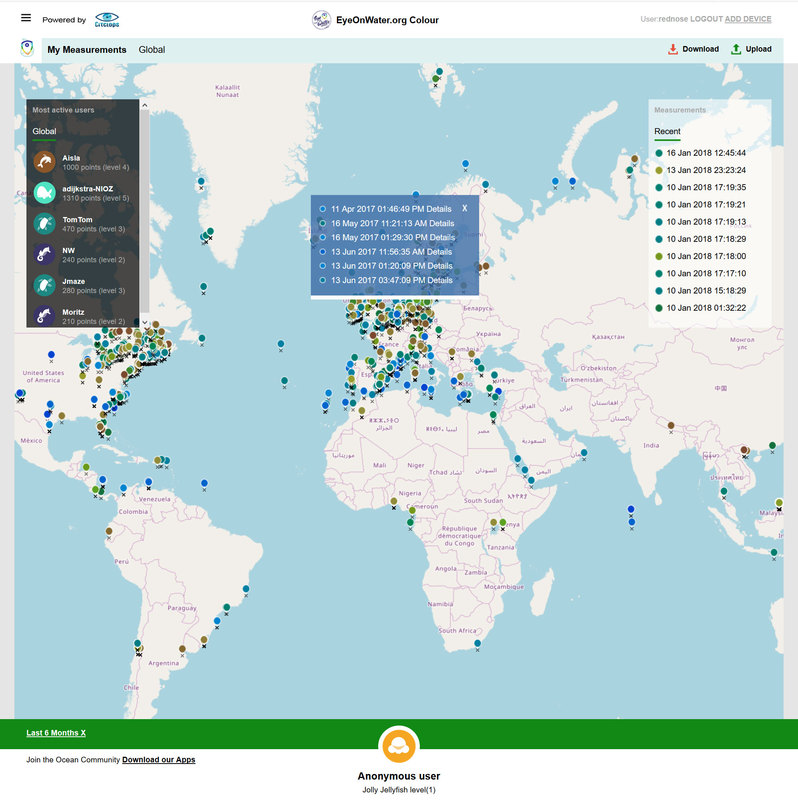 On the right side of the screen you see recent measurements by all users. On the left side of the map
you can click on the most active users and see their measurements.
On the right side of the screen you see recent measurements by all users. On the left side of the map
you can click on the most active users and see their measurements.
By clicking on one of the coloured circles on the map a pop-up window opens with all measurements
close to the one you clicked on. If there is only one measurement, detailed information about the
measurement will follow showing the Forel Ule value, coordinates and device the photo was taken
with.
Filtering observations
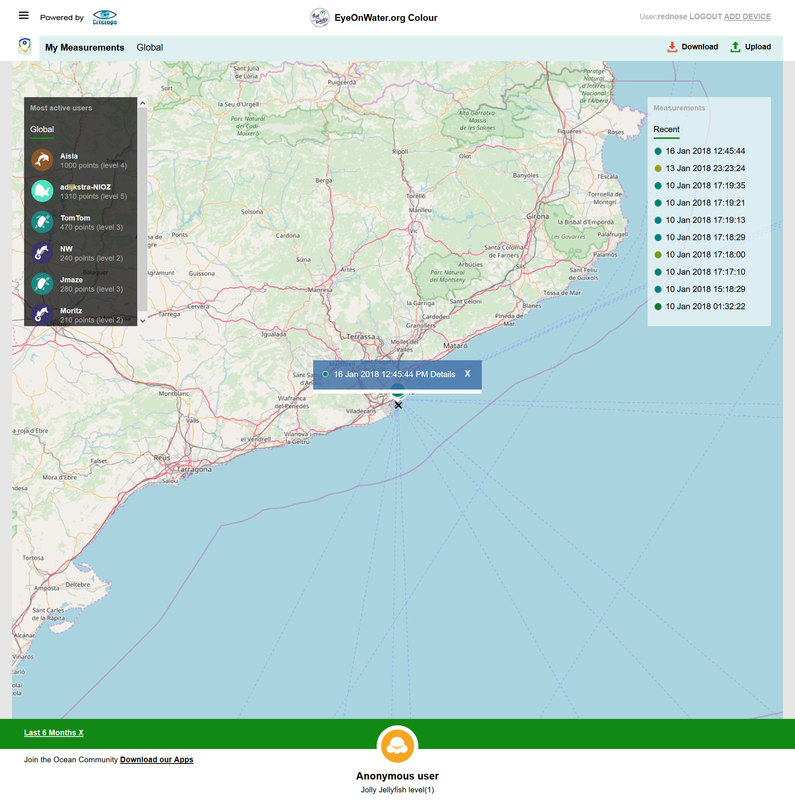 You may also be interested in a selection of observations. EyeonWater has several options to filter
measurements.
You may also be interested in a selection of observations. EyeonWater has several options to filter
measurements.
Above the map you have 3 options: Nearby, global and my measurements. Click on
my measurements to see all observations connected to your device. The option “nearby” will show you
all observations in proximity to you whereas global will show all observations around the world.
In addition, measurements can be filtered on date. On the bottom left you can click on “last 6
months X” to change the time. When clicking on “Older than one year” you will see all measurements
present in the database older than one year; either collected with the real Forel-Ule scale or using
the App.